Runs
How a single agent run is queued, executed, stopped, and retried.
Every time an agent starts working, Multica creates a run that records what triggered the work, which agent it went to, how far it has got, and whether it succeeded.
Issues and runs
An issue holds the goal, discussion, assignee, and final status of a piece of work; a run records one agent execution against that work.
| Issue | Run | |
|---|---|---|
| What it records | A piece of work moving forward | One agent run |
| How long it lasts | Can be discussed, amended, and reassigned repeatedly | From trigger until completion, failure, or cancellation |
| Cardinality | One issue can span many runs | Every run gets its own record |
The same issue can be handed to different agents in turn, or run again after a failure. Each execution produces a new run record; earlier records are never overwritten.
Trigger sources
Each of the following triggers a run:
- Assigning an issue to an agent or a squad.
- Mentioning an agent in a comment.
- Sending a message to an agent in chat.
- An Autopilot firing on a schedule or from an external event.
- An issue wakeup firing on its event, time, or condition.
The agent gets different context depending on the entry point, but execution works the same way: Multica creates a run, a runtime claims it, and the runtime invokes the AI coding tool the agent is configured with.
Execution lifecycle
A run typically moves through these states:
| State | Meaning |
|---|---|
deferred | Scheduled to fire later; enters the queue at the appointed time |
queued | Waiting for a runtime to claim it |
dispatched | A runtime has claimed it and is starting the AI coding tool |
waiting_local_directory | The target local directory is held by another run; waiting for the directory lock to release |
running | The AI coding tool is executing |
completed | The run finished normally |
failed | The run errored or was interrupted |
cancelled | The run was stopped manually |
When the runtime is online, a new run usually starts quickly; if the runtime goes offline after the run enters the queue, the run stays queued until it recovers. Waiting a long time does not expire a queued run: a runtime that keeps heartbeating is busy, not gone, so its backlog can drain however long that takes. A queued run fails only when both are true: its runtime has been silent past the reconnect grace, and the run itself has been queued that long. The second condition covers work assigned to a machine that is already asleep: instead of failing straight away, the run gets a full grace period for you to wake the machine.
If the system already knows the target runtime is offline before triggering, some immediate actions report that the run cannot start right now instead of creating a run nothing can claim.
A runtime with a healthy heartbeat can execute long runs; the server never force-ends a run just because it has been running for a while. The runtime decides whether the process has stalled based on actual activity; see Environment variables for the relevant settings.
Viewing run history
Every run an issue produces is listed in the Execution log section of the issue's right sidebar. The section is expanded by default: active runs stay pinned at the top, followed by the 3 most recent finished runs under Latest; click Open timeline for older ones. Each row shows the trigger source, the executing agent, and the state. If you don't see the section, open the sidebar with the panel button in the issue header; on narrow screens it starts collapsed.
While the page is open, the log updates over the realtime connection: new runs, status changes, and the agent's comments appear without a reload.
While an agent is working, the issue header also carries a live chip such as "Engineer is working". Hovering it shows the same active runs, so you can check progress without leaving the page.
In the execution log you can:
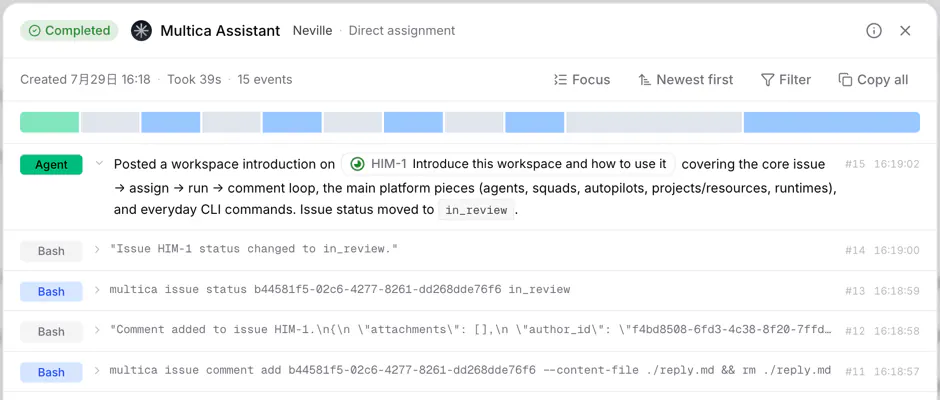
- Click View transcript on a row to see the agent's messages, tool calls, and error output. For a run still in progress the transcript keeps streaming while the dialog stays open, and a Newest first toggle flips the event order.
- Stop runs that are queued, starting, waiting for a local directory, or working.
- Retry a failed or cancelled run.
The demo below walks through a full cycle: a run queues, starts, and fails; you retry it and the new run completes. Once the new run starts, you can also try stopping it midway.
Changing an issue's assignee or status does not stop a run that has already started; to interrupt one, stop it in the execution log. Deleting an issue cancels its active runs.
The execution log also totals the issue's Spent, Tokens, and Agent time, with one cost bar per run. Clicking the total, a bar, or Open timeline opens the Runs dialog, which charts cost per run or cumulatively, splits it by agent and by model, and counts failed and cancelled runs. Costs are estimates; see Analytics for how they are calculated and for workspace-wide usage.
Failures and automatic retries
Transient faults — a runtime going briefly offline, a daemon restart, an execution timeout, or a network interruption in the AI coding tool — can trigger an automatic retry. A regular run executes at most twice by default; tool network interruptions get up to three attempts.
Errors returned by the agent itself are usually not retried automatically. Expired credentials, exhausted quota, misconfiguration, or a model unable to complete the request all need the cause fixed first, then a manual retry.
An Autopilot's run only mode does not retry automatically, to avoid overlapping with the next scheduled run. The create issue mode produces regular issue runs, so infrastructure failures still retry under the rules above. Both modes show their final result in the Autopilot run history.
When an issue has no other active run and no new retry waiting to run, a failure moves an in_progress issue back to todo.
Failure reason reference
The failure reasons shown in the execution log and Analytics fall into two groups: unprefixed reason codes are recorded by the platform; agent_error.* codes are classified from the AI coding tool's own errors.
| Reason | Meaning | What to do |
|---|---|---|
runtime_offline | The runtime went offline during the run | Restore the runtime and retry; see Daemon and runtimes |
queued_expired | The runtime stopped heartbeating for longer than the reconnect grace, and the run had also been queued that long | Confirm the runtime is online, then retry |
runtime_recovery | The daemon reclaimed an interrupted run after restarting | Retry directly |
environment_prepare_failed | The daemon could not set up the execution environment for this run — its working directory, or the local runtime config written into it | Read the raw error to see which step failed, then check that machine: disk space, permissions, a directory still in use, or the AI coding tool's local config |
cancelled | Stopped manually, or cancelled along with an archive or delete | Nothing to do |
timeout | Exceeded the daemon's configured execution time limit | Narrow the issue scope, or adjust the daemon's agent_timeout |
iteration_limit | Hit the iteration cap for a run | Narrow the issue scope |
agent_blocked | The agent reported it cannot proceed | Provide what its comment asked for |
api_invalid_request | The platform API rejected an invalid request | Retry; report the problem if it recurs |
codex_semantic_inactivity | Codex produced no meaningful output for too long and was judged stalled | Retry, or adjust the Codex inactivity timeout |
Manual retry
Clicking the retry button on a row in the execution log invokes the agent that handled that run at the time. Even if the issue has since been reassigned, the retry does not switch to the new assignee.
A retry keeps the files the previous run already wrote to the local directory whenever possible. If the original session is still safe and the same runtime claims the retry, it continues that session. Errors that poison the session, such as context overflow or invalid requests, start a new session on top of the original working directory instead. When the original directory no longer exists, a fresh working directory is used.
Find the source run and retry it from the CLI:
multica issue runs <issue-id> --full-id
multica issue rerun-task <run-id>
A full run UUID works without --issue; short prefixes require --issue to select the issue. This repeats the original agent and trigger context with the same continuity rules as the retry button. Add --fresh to start a new session and working directory.
The old multica issue rerun <issue-id> command is deprecated and hidden from help. It remains available for existing scripts and still starts the current assignee with a fresh session and working directory.
Run completion and issue completion
completed only means this particular run ended normally; it does not confirm the issue's goal has been met. After a run ends you can still review the result, keep discussing, add requirements, or trigger the agent again. Whether the issue is done is shown by its status.
State and timeout quick reference
The numbers below are the server's defaults.
| State | Meaning | Timeout and consequence |
|---|---|---|
deferred | Scheduled to fire later | Enters queued at the scheduled time, then the rules below apply |
queued | Waiting for a runtime to claim it | Waits as long as its runtime keeps heartbeating, and in every case for at least one reconnect grace after being queued; fails only when both windows have passed, and is not retried automatically |
dispatched | Claimed; the tool is starting | Treated as failed after more than 5 minutes in this state |
waiting_local_directory | Waiting for the local directory lock to release | No timeout of its own; returns to the startup flow once the directory is released |
running | The AI coding tool is executing | No fixed duration cap; liveness follows the runtime heartbeat — one every 15 seconds; a runtime that loses its heartbeat is marked offline within about 3 minutes at the latest. Its runs fail only once the heartbeat has been missing longer than the reconnect grace (MULTICA_RUNTIME_RECONNECT_GRACE, 3 hours by default); a daemon restart reclaims them directly |
Automatic retry covers only the transient faults below, and only applies to runs attached to an issue or a chat (excluding the Autopilot run only mode):
| Auto-retryable failure reason | Attempt ceiling |
|---|---|
| Runtime offline | 2 by default (first run + 1 retry) |
| Reclaimed after a daemon restart | 2 by default |
| Platform-judged execution timeout | 2 by default |
| Codex stalled with no meaningful output | 2 by default |
| Skill bundle download failure | 2 by default (the agent process has not started at this point; already-downloaded bundles come from the local cache) |
| Tool network interruption | Up to 3; the final attempt starts after a delay of about 5 seconds |
All other failure reasons (auth, quota, configuration, model, and so on) never retry automatically; fix the cause first, then retry manually.
Next steps
- Daemon and runtimes — which computer a run executes on.
- Assigning issues to agents — trigger a run from an issue.
- Mentioning agents — add requirements in comments or bring in other agents.