Create and configure an agent
Choose a runtime, then define the agent's responsibilities, capabilities, execution setup, and Access.
Creating an agent requires a working runtime first. The runtime decides which computer and which AI coding tool the agent uses; the agent holds the long-lived identity, instructions, and capabilities.
Creation flow
On the workspace Agents page, click New agent, then go through three steps:
Choose a runtime. The page lists the AI coding tools (harnesses) on each machine, and only online ones let you continue. Which models you can pick later, and whether skills are available, depend on this choice.
Configure the agent. Fill in the name, description, instructions, skills, model, and Access. To skip writing it all yourself, click Let AI write it: the current draft goes to the Agent Builder, which asks for the key details in a conversation and completes the configuration. The button appears only when the selected runtime is online and isn't a cloud runtime. While you talk to the Builder, you can edit the draft beside the conversation at any time.
Click Create agent. The done page shows which runtime the agent runs on and links to what comes next: assign its first task, mention it in an issue, or add it to a squad.
- 1Choose runtime
- 2Configure
- 3Done
Required fields
Creating an agent requires only two things:
- Name — must be unique within the workspace.
- Runtime — the environment that actually executes runs.
Every other field can start with its default and be adjusted after creation. By default, only the creator can run a new agent.
Description and instructions
The description is a short introduction for the team. It appears only in the agent list and detail page, and never enters the AI coding tool's prompt.
Instructions are provided to the agent on every run and usually cover:
- what it is and isn't responsible for;
- what to check first when work arrives;
- what it is allowed to modify;
- how to deliver results;
- when to check with a member before proceeding.
For example:
You review frontend pull requests.

Read the diff and related tests first, and check only:
- React and TypeScript correctness
- Accessibility
- Consistency with existing component patterns

Do not modify code directly. Post findings in an issue comment,
ordered by severity; when nothing blocks, state clearly that the change can merge.
Adding skills
During creation you can pick one or more skills from the workspace.
Skills suit methods and material reused across agents; long-lived requirements that belong only to this agent go in the instructions.
Conversation starters
Add up to three conversation starters to show people what this agent is good at before they send a first chat message. They appear when someone opens a new chat with the agent, above the composer. Each starter has a short label and a complete prompt. Selecting one fills the composer so the user can review or edit it; it never starts a run automatically.
During creation they are an optional row under Identity. Afterwards they live in Settings → General, next to the avatar, name, and description, beside a preview of exactly what a new chat will show. Anyone who can edit the agent also gets a Customize starters link in that empty state that deep-links there.
If you leave the list empty, Chat shows localized general-purpose defaults. Agent-specific examples are usually more useful because they can reflect the role and boundaries in the instructions.
From the CLI, set them with --conversation-starters on agent create and agent update (a JSON array of { "label", "prompt" } objects; pass '[]' on update to clear). agent copy still copies the source value and has no override flag.
Runtime, model, and thinking level
Each runtime already maps to one AI coding tool. After picking a runtime, you can pick a model and thinking level the tool supports; some tools (such as Codex) also offer a service tier:
- Left blank, the runtime or local CLI default applies.
- With a model set, the agent uses that override for runs it picks up afterwards.
- Some runtimes manage models themselves, so no model picker is shown.
Tools differ in supported models, session resume, skills, and MCP capabilities — see AI coding tools comparison.
Access
Access decides which members can run this agent (assign, @-mention, or chat):
| Access | Meaning |
|---|---|
| Only me | Only you can run it. The default. |
| Entire workspace | Every workspace member can run it. |
| Specific people | Only you and the selected members can run it. |
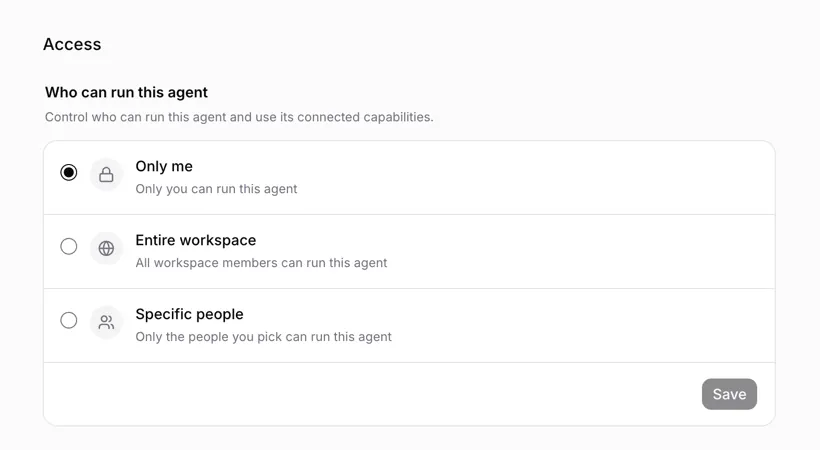
Only the agent owner can change Access; workspace admins cannot. Workspace owners and admins can manage the rest of the configuration, but cannot use their admin role to run agents they aren't granted.
Configuration after creation
On the agent's detail page you can keep adjusting:
| Setting | What it does |
|---|---|
| Concurrency limit | How many runs the agent can run at the same time. The default is 6; runs beyond the cap keep queuing. |
| Environment variables | Inject variables when the AI coding tool starts. |
| Custom arguments | Appended item by item to the AI coding tool's CLI arguments. |
| MCP | Configure MCP servers for AI coding tools that support them: add one just for this agent, or pick from the workspace's shared MCP servers. |
| Integrations | Connect external services this agent can use. |
The daemon hosting the runtime also has a global concurrency cap (default 20); the effective concurrency is the smaller of the two.
Editing configuration does not change runs already running. Later runs use the agent configuration saved at the time the runtime picks them up.
Environment variables and credentials
Environment variables suit limited-privilege credentials the agent needs at run time, such as a read-only API key or a single-scope token.
custom_env values are stored in plaintext in the Multica server database — they are not "stays on this machine" data. Agent list and detail endpoints no longer return any env values, only an opaque count; only workspace owners and admins can unlock and modify values, and every read or change leaves an audit record. A running agent cannot call the admin endpoints to read another agent's variables.
Do not use production database admin passwords or other high-value long-lived credentials.
Critical runtime variables such as PATH, HOME, and MULTICA_* cannot be overridden here.
Custom arguments and MCP
Custom arguments are passed to the AI coding tool as an array, item by item, without shell expansion. Whether an argument is valid is up to the tool; model configuration that already has a dedicated field doesn't need to be repeated here.
Arguments reserved by the runtime adapter are rejected when creating an agent, editing its custom arguments, or changing its runtime. The error names the conflicting argument. For example, Multica runs Claude Code with --permission-mode bypassPermissions; setting --permission-mode dontAsk in custom arguments is rejected. Clearing custom arguments with [] allows a runtime change when the saved arguments conflict with the target runtime.
Do not put credentials or other secrets in custom arguments. They remain in the child process's argv and may be visible to other local processes through ps or /proc; use environment variables (custom_env) instead. Daemon logs redact argument values, but that does not protect the operating system's process list.
MCP configuration may contain tokens; its storage and display rules match environment variables. Only runtimes that support managed MCP configuration show this section; tools without MCP support don't gain it just because a configuration is saved. When an agent has an MCP configuration, the daemon also merges in the MCP servers already configured on the runtime's machine; see Local MCP configuration.
An agent's MCP tab lists the MCP servers it can use in three groups:
| Group | Source |
|---|---|
| Managed by Multica | Servers that belong to this agent alone. Click Add MCP and fill in a STDIO command or a Streamable HTTP URL, in the visual editor or as JSON. |
| From the workspace library | Shared workspace servers assigned to this agent; see the next section. |
| Inherited from runtime | The AI coding tool's own user configuration on the runtime's machine, read-only. It can be read only while a local runtime is online. |
When names collide, the agent's own entry wins over an assigned workspace server, and both win over a runtime server with the same name. The entry that loses is marked Overridden or Overridden by Multica.
Shared workspace MCP servers
When several agents need the same MCP server, you don't have to enter its URL and token on each of them. A workspace owner or admin adds it once under Settings → MCP servers, then assigns it to the agents that need it.
An admin opens Settings → MCP servers, clicks Add server, and enters a name and configuration.
A newly added server belongs to no agent. Open the MCP tab of each agent that should use it, click Add from workspace in the From the workspace library group, and pick it.
Each assignment has its own switch, so you can turn a server off for one agent without removing it. Changes take effect from that agent's next run.
In the Settings → MCP servers list, each server shows "Used by N agents" or "Not assigned to any agent". Keep in mind:
- Configuration is write-only. Once saved, URLs, commands, headers, and environment values are never shown again, to anyone, owners included. To change them, click Replace configuration and enter a complete new configuration. Renaming keeps the configuration and every assignment.
- Deleting affects every agent. Removing a server in Settings also removes it from every agent it was assigned to, starting with each agent's next run. To stop just one agent from using it, switch it off or remove it on that agent's MCP tab.
- Permissions. Members can see the list but can't add or change servers. Assigning or removing a server on an agent takes that agent's owner or a workspace
owneroradmin. An agent can't add servers or change assignments through the CLI while it runs.
The CLI does the same. Configurations usually contain tokens, so pass them from a file or stdin rather than as a command-line argument:
multica workspace mcp add linear --server-config-file ./linear.json
multica workspace mcp list
multica agent mcp add <agent-id> <server-id>
Duplicating an agent
Duplicating carries over most working configuration except the name, including instructions, conversation starters, skills, custom arguments, avatar, concurrency limit, and Access settings. The model, thinking level, and service tier come along too; if the original runtime is unavailable and the copy is forced onto another runtime, those three are cleared and must be re-selected.
Environment variable values, MCP configuration, and workspace MCP server assignments are never copied and must be set again on the new agent.
Creating with the CLI
multica agent create \
  --name "Frontend Reviewer" \
  --runtime-id <runtime-id> \
  --description "Reviews frontend pull requests" \
  --instructions "Read the diff and tests first; post review conclusions only as issue comments." \
  --conversation-starters '[{"label":"Review a PR","prompt":"Review the most relevant open pull request."}]'
Plaintext in command-line arguments ends up in shell history; stdin and permission-restricted files do not.
When a similarly configured agent already exists, copy it directly:
multica agent copy <agent-id>By default the copy stays on the same runtime; add --runtime-id to move it to another runtime, which also requires --model. Environment variables, MCP configuration, and runtime_config are never copied; the runtime binding itself is kept. Full flags in Using the CLI.
Next steps
- Assign issues to agents — validate the configuration with real work.
- Skills — create, import, and reuse team methods.
- Daemon and runtimes — troubleshoot online status and where execution happens.