Members and roles
Invite members and manage workspace permissions with the owner, admin, and member roles.
Everyone who joins a workspace is a member, and each member has one role: owner, admin, or member. Roles only control workspace settings and team management; day-to-day collaboration — creating issues, writing comments — is open to all members.
The three roles
| Action | owner | admin | member |
|---|---|---|---|
| View the workspace and collaborate day to day | ✓ | ✓ | ✓ |
| Change workspace settings | ✓ | ✓ | — |
Invite an admin or member | ✓ | ✓ | — |
Change or remove an admin or member | ✓ | ✓ | — |
Grant, revoke, or remove owner | ✓ | — | — |
| Delete the workspace | ✓ | — | — |
A workspace must always keep at least one owner: the last owner cannot be demoted, removed, or leave.
memberCreate and work on issues
- View the workspace and take part in everyday work
- Change workspace settings
- Invite an admin or member
- Change or remove an admin or member
- Grant, revoke or remove owner
- Delete the workspace
- Meimei HanOwner
- YouMember
- Lei LiMember
Roles do not decide who can run an agent. Each agent has its own Access scope, and owner and admin cannot bypass it to run agents they were not granted. See Agents.
Invite members
owner and admin open Settings → Members, click Invite member, enter an email, pick a role, and send. Invitations can only grant admin or member; an owner must join the workspace first and then be promoted by an existing owner.
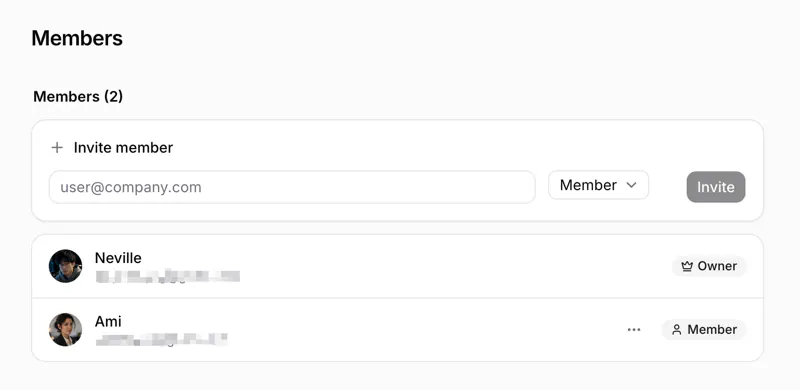
The invitee accepts by logging in with that email — no prior signup is needed. Invitations are valid for 7 days; resend after they expire. On self-hosted instances that restrict signup, a live pending invitation allows that email to create an account without a separate allowlist entry — see Auth setup.
The invitation link appears only in the email; there is no place in the product to view or copy it. If the email fails to send, the invitation record still exists — revoke it and send a new one.
When you need a link you can pass along yourself, generate one under Share links in Settings → Members by choosing a role and an expiry. Anyone with the link can join with that role until it expires or is revoked.
Change roles
In the member list, open the actions menu at the right of a member's row and choose Change role. The new role takes effect immediately.
An admin can move roles between admin and member, and can remove members holding those two roles. Any change involving owner — promoting, changing, or removing — can only be performed by an owner.
Remove a member
A removed member loses workspace access immediately. Issues, comments, and other collaboration records they created stay in the workspace.
Removing a member also deactivates the runtimes they own, archives the agents bound to them, and cancels runs that have not finished. Grants the member received in agent Access scopes are cleared as well and are not restored automatically if they rejoin.
Next steps
- Issues — the work members and agents handle together.
- Agents — how workspace roles differ from agent Access.
- Daemon and runtimes — who owns runtimes and where they run.